
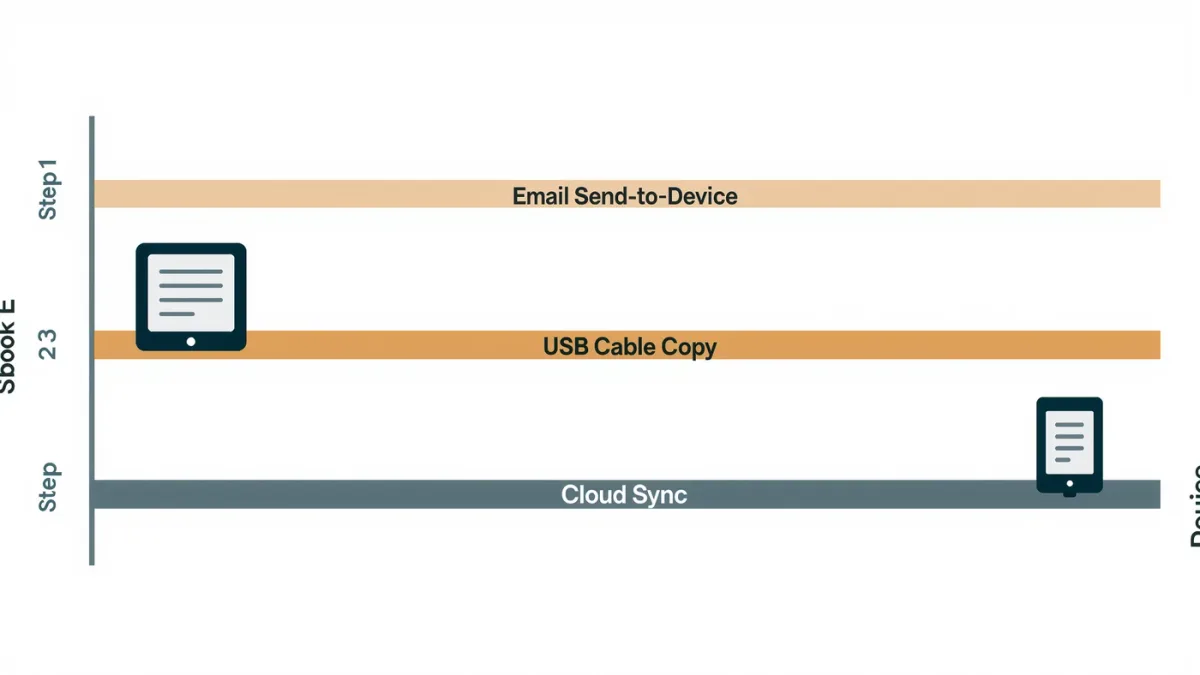
Yes — every current mainstream e-reader accepts your own EPUB files, and on most of them it takes one of two steps: email the file to the device's send-to address, or copy it over USB. The word that keeps this safe is DRM-free: books you bought without copy protection, public-domain titles, and files you made yourself. This guide walks the safe routes for Kindle, Kobo, PocketBook, and Boox as documented by each maker as of January 2026.
MonBook Pro publishes information, not legal advice — and nothing here covers removing copy protection from a book. That is a different question with a different answer, and it is not this guide.
Which files are safe to sideload in the first place?
DRM-free EPUBs from sources you can name: stores like Kobo, Smashwords, and Weightless Books sell many titles without DRM and say so on the product page; Project Gutenberg and Standard Ebooks publish public-domain editions; and anything you export from your own manuscript is yours. The caution list is short but matters. Free "EPUB" downloads from random aggregator sites are a common malware vector — a 2019–2020 series of ESET-reported campaigns hid malicious payloads in ebook downloads, a reminder that a book file is just an archive. And a DRMed file will simply fail to open on the wrong device; no amount of sideloading fixes that lawfully.
How do you sideload on a Kindle?
Through Amazon's Send to Kindle service, which officially supports EPUB since 2022 — per Amazon's own help page. Two routes:
- Send to Kindle email: in your Amazon account settings, find your device's @kindle.com address, attach the EPUB to an email from an approved address, send. The book arrives synced with your library, highlights, and reading position.
- Send to Kindle app or web portal: drag the file into the Send to Kindle page or use the desktop/mobile app; pick which devices receive it.
The trade-off worth saying out loud: files sent this way live in Amazon's cloud under Amazon's terms, and Amazon's documentation notes size and document-count limits. USB sideloading of EPUB directly to a Kindle is not supported the way it is on Kobo — AZW and PDF over USB work, EPUB does not, per Amazon's format documentation.
How do you sideload on Kobo, PocketBook, or Boox?
Over USB, directly — this is the most durable method and works identically on all three:
- Connect the reader to a computer with a USB cable.
- Open the device's storage (it mounts as a drive on most operating systems; Boox, being Android-based, also offers MTP and its own send-to service per Onyx's documentation).
- Copy your EPUBs into the reader's books folder — Kobo documents its importer; PocketBook and Boox scan storage automatically.
- Eject cleanly, then open the library and give the device a moment to index.
Kobo also supports its own Rakuten Kobo send-to-document options and PocketBook offers its PocketBook Cloud and send-by-email features per their respective support pages. Dropbox integration is documented by both PocketBook and Onyx for wireless transfers — genuinely handy if your library lives in the cloud.
How do you keep a sideloaded library from becoming a mess?
Two habits, both boring and both effective. First, keep a master copy of every DRM-free file on your own computer or drive — sideloaded files are only as safe as your backup, and makers' sync services cover their ecosystem's purchases, not always your personal documents. Second, fix metadata before it lands on the device: correct title, author, and cover in a tool like Calibre on your computer first, because a reader's library sorts by whatever the file claims to be. Collections or shelves on Kobo, PocketBook, and Boox let you group sideloaded books; Kindle applies its own document handling, per each maker's support documentation.
What can go wrong, and how do you avoid it?
- File won't open: it is almost certainly DRMed, or an EPUB 2/3 quirk — re-export or buy the DRM-free edition.
- Weird formatting: publisher-side EPUB issues; Standard Ebooks editions are a reliable benchmark of clean markup.
- Duplicates: sending the same file through two channels; pick one route per book.
- Vanishing after a reset: USB-copied files can be wiped by a factory reset — another reason for the master copy.
Is sideloading safe for your account, too?
Yes, within each maker's terms. Amazon's Send to Kindle documentation describes personal-document handling and storage limits; Kobo, PocketBook, and Boox sideloading over USB does not touch your store account at all, which is precisely why long-term sideloaders tend to drift toward those brands. The honest gap: none of the makers publish exact personal-document retention guarantees in plain terms, so treat cloud-sent documents as convenient, not archival.
For more context, read Which E-Reader Handles Library Books Best?.
For more context, read Can You Read Library and Purchased Books on Any E-Reader?.
For more context, read PocketBook or Kobo: Which E-Reader Ecosystem Fits You?.